Adding a Webhook
The easiest way to configure a Webhook is through the Way dashboard. Click on “Add webhook”, and specify the URL in which you have an endpoint ready to receive HTTP POST requests. Enter a secret key (optional) and select the events you want to subscribe to.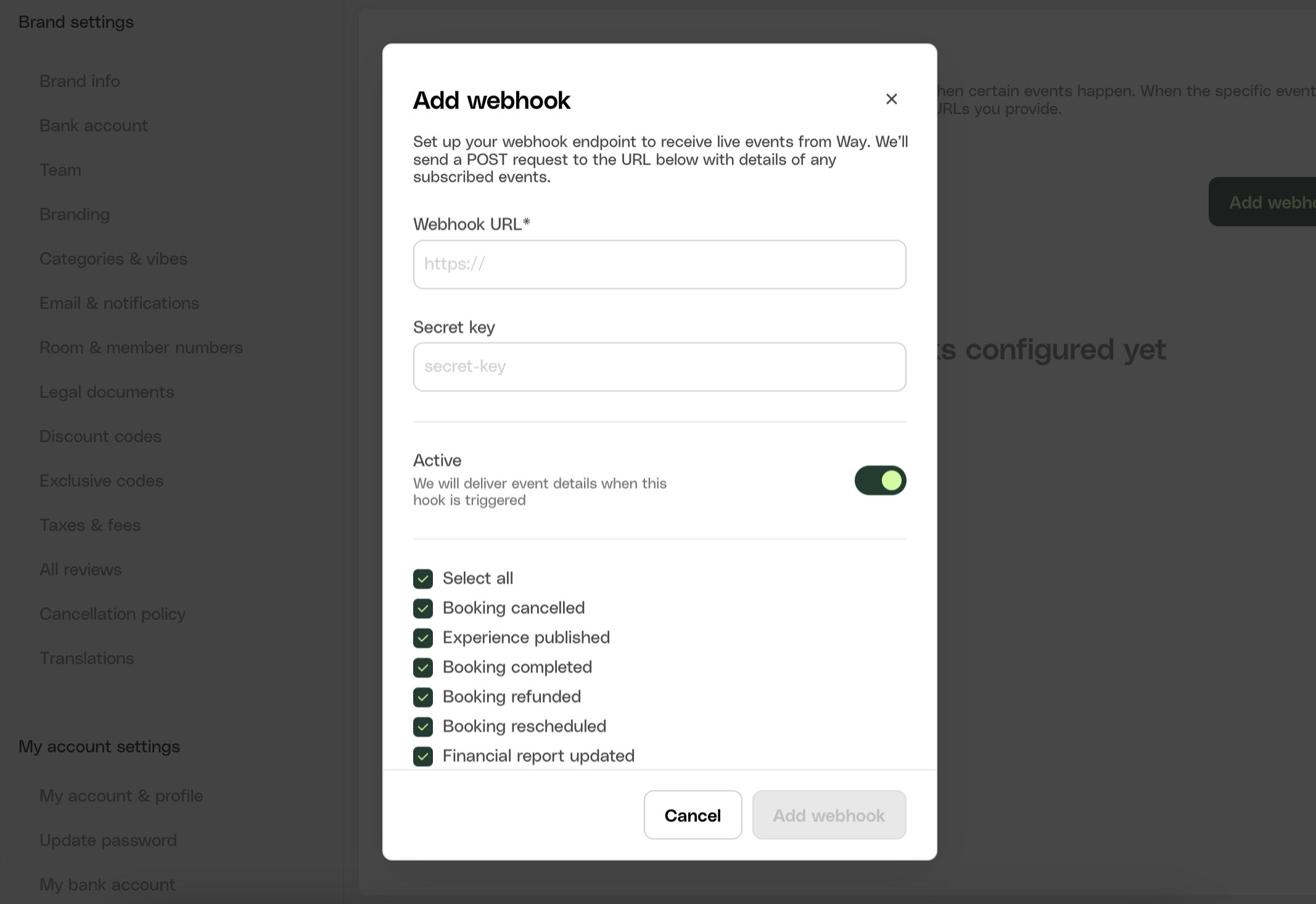
Supported Events
Booking Completed
Triggered whenever a booking is made.
Booking Rescheduled
Triggered whenever a booking is rescheduled.
Booking Canceled
Triggered whenever a booking is fully or partially canceled.
Booking Refunded
Triggered whenever a booking is fully or partially refunded.
Experience Published
Triggered whenever an experience is published.
Financial Report Updated
Triggered whenever an update to the financial report occurs (booking completed, refunded, etc.)
Listing Published
Triggered whenever a listing is published.
Listing Unpublished
Triggered whenever a listing is unpublished.
Review Completed
Triggered whenever a review is written.
Securing a Webhook
To ensure the security and authenticity of webhook calls, a unique secret can be set when configuring a webhook in Way. This secret is encrypted and transmitted as a special header, namedX-Way-Signature, in each webhook request sent to your URL. By encrypting this secret on your end using the same method and comparing it with the X-Way-Signature header, you can verify that the incoming requests are indeed from Way.
Node.js Example:
Retry Webhooks
When a webhook trigger results in an error response from Way, the system schedules a retry attempt after a specific interval. If this retry also encounters an error, additional retry attempts are made until a maximum limit is reached. These retries occur in batches and follow the sequence in which the webhooks were initially triggered.- Retry Interval: The failed webhooks are retried in 10 minute intervals.
- Retry Threshold: If a webhook retry fails for the third time, then there will not be be any new retries. The webhook log will stay in the failed state.
Viewing Webhook Logs
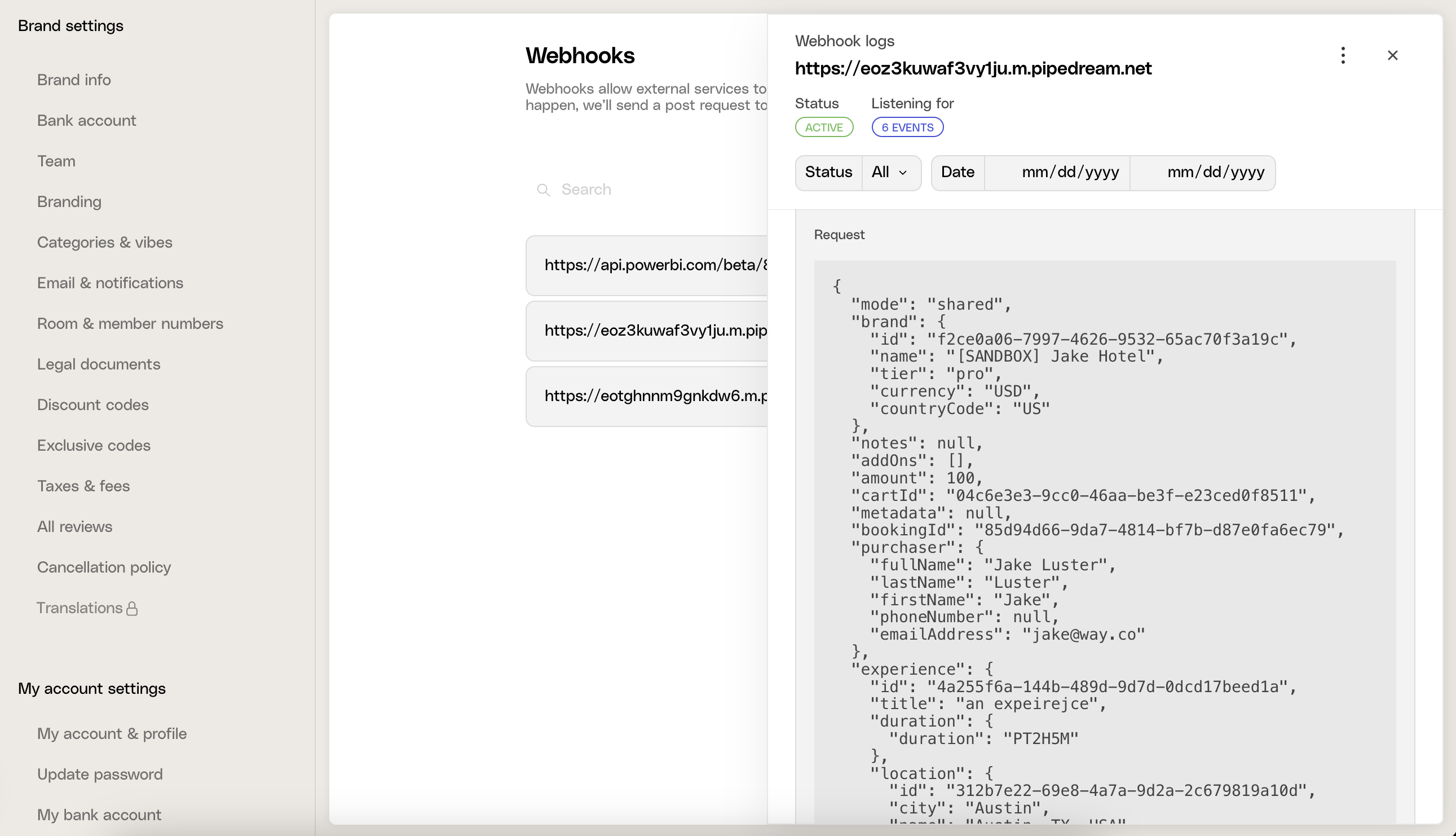
To help you monitor and debug webhook activity, Way provides a Webhook Logs section in the dashboard. This log captures all webhook requests sent to your configured URLs, including:- Delivery Status (Success, Failed, Retried)
- Timestamps (When the webhook was triggered and delivered)
- Response Codes (E.g.,
200 OK,500 Internal Server Error) - Payload Data (The full JSON payload sent)
- Go to Way Dashboard > Settings > Developers > Webhooks
- Click on a specific webhook to see recent webhook requests
- Filter logs by status, event type, or date range to troubleshoot issues